
No Need to Panic, Here's an Easy Way to Change Your SSO Password
If you have forgotten your SSO password, you can reset it yourself easily and quickly with the following guide. Make sure your registered WhatsApp number is active so that the verification code can be received without problems.
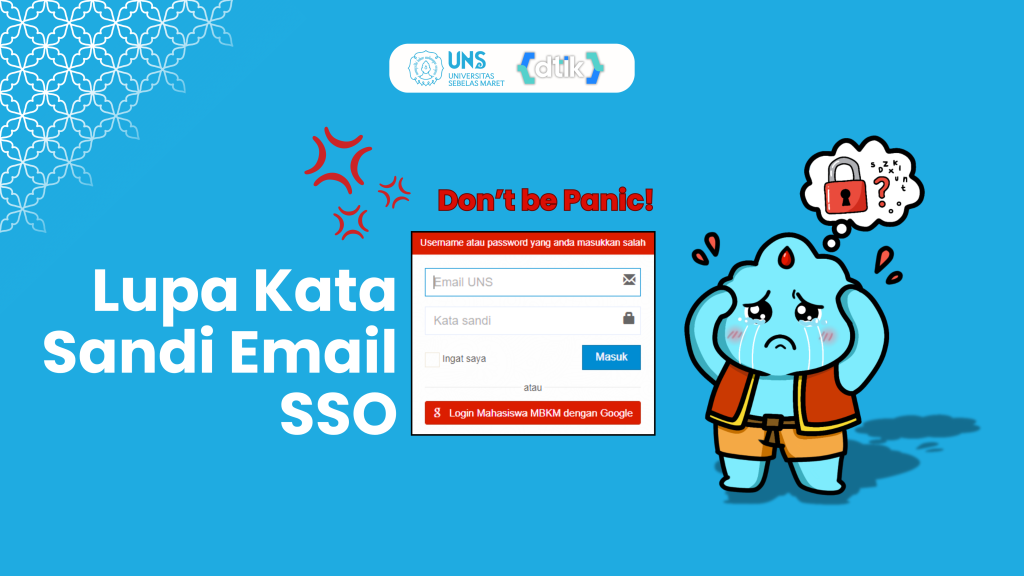
- Open the page https://profil.uns.ac.id/site/LupaPassword
- Enter your UNS SSO email and solve the captcha code
- Enter the last 3 digits of the phone number registered in SIAKAD. Note: If you have forgotten the last 3 digits of your number, you can ask the UNS Central Academic Bureau.
- A 6-digit code will then automatically be sent to your WhatsApp number
- If the WhatsApp number shown on the change password page is an old number or the verification code is not sent, you can request the code by clicking the send WhatsApp message button on that page. After all of these steps are complete, you can request the change WhatsApp number procedure, and also include a selfie with your ID card (KTM for Students, and Staff Card for Lecturers/Staff)
- Enter the verification code sent to your WhatsApp
- Enter the new password you want, then repeat the same password to verify it
- Make sure all the steps have been completed
Once the password reset is successful, you can log in again right away with your new password. If you run into problems such as the verification code not being sent or an old WhatsApp number, change your WhatsApp number in SIAKAD right away.