
EASY! How to Activate and Fix Two-Step Verification Issues on UNS SSO.
If you have ever had trouble logging in to SSO with a notification about two-step verification, don’t worry. This problem usually occurs because the two-step verification policy on your account has not been activated or has not been configured correctly.
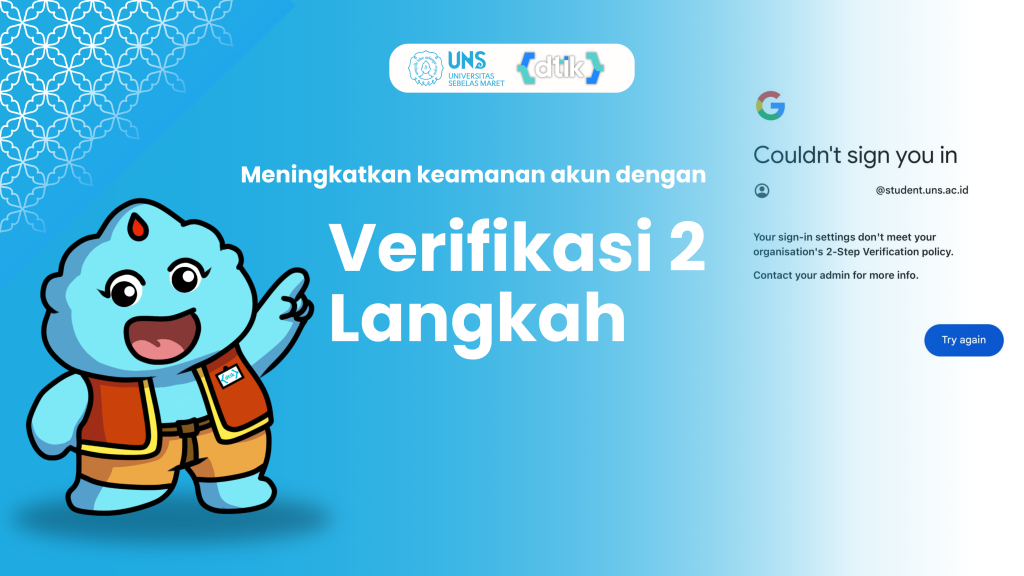
You can handle it yourself. Below is a step-by-step guide you can follow on your own so that the SSO login process runs smoothly without obstacles.
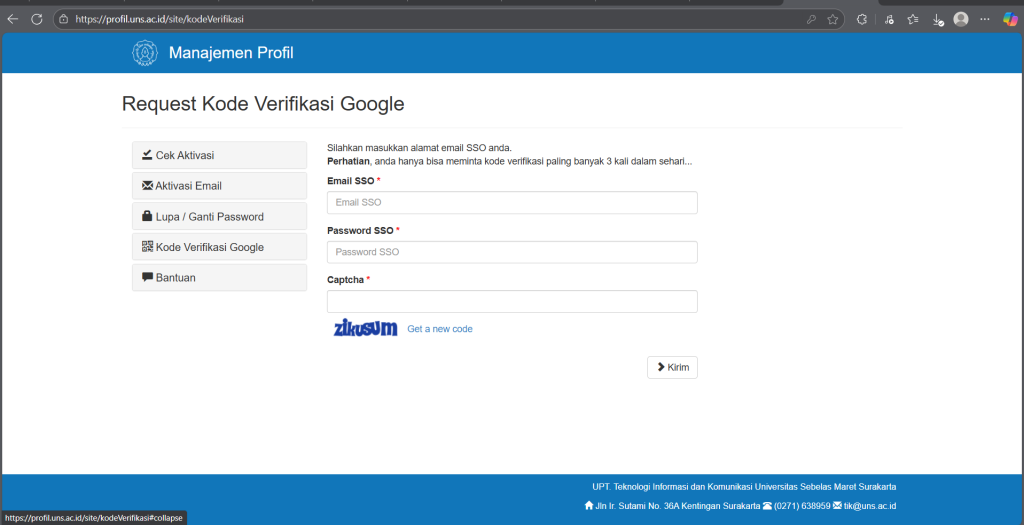
- Open the page https://profil.uns.ac.id/site/kodeVerifikasi
- Enter your SSO email and password
- Solve or type the captcha code shown
- An 8-digit backup code will then automatically be sent to your WhatsApp number. If the WhatsApp number registered in SIAKAD has changed, you can update it first at https://siakad.uns.ac.id. For detailed steps, please open the following link Change SIAKAD Number
- Go to the page https://bit.ly/LoginSSOUNS . If you cannot log in through that page, use the Gmail app
- Log in using your SSO email
- Select the “try another way” option and choose the 8 (eight) digit verification code
- Enter the 8 (eight) digit code that was previously sent to your WhatsApp
- Once successful, you can activate 2-step verification yourself by adding a phone number where you can be reached
- Enter the verification code sent via SMS to the added number
- Make sure 2-step verification is active.
After following the steps above, you should be able to resolve two-step verification issues on SSO login easily. Make sure your two-step verification is active and the number registered in SIAKAD has an active WhatsApp so that codes are sent to the correct number and the login process is more secure. If you still have difficulties, don’t hesitate to contact us and we will help you with further guidance.